Donnerstag, 26. April 2012
Libraries in Windows 7 on Network Shares
zebbelin, 23:56h
Hi there,
You wonder how you can add Network shares as a Library in Windows 7?
It is a really easy thing to do!
Browse to the folder:
%appdata%\Microsoft\Windows\Libraries
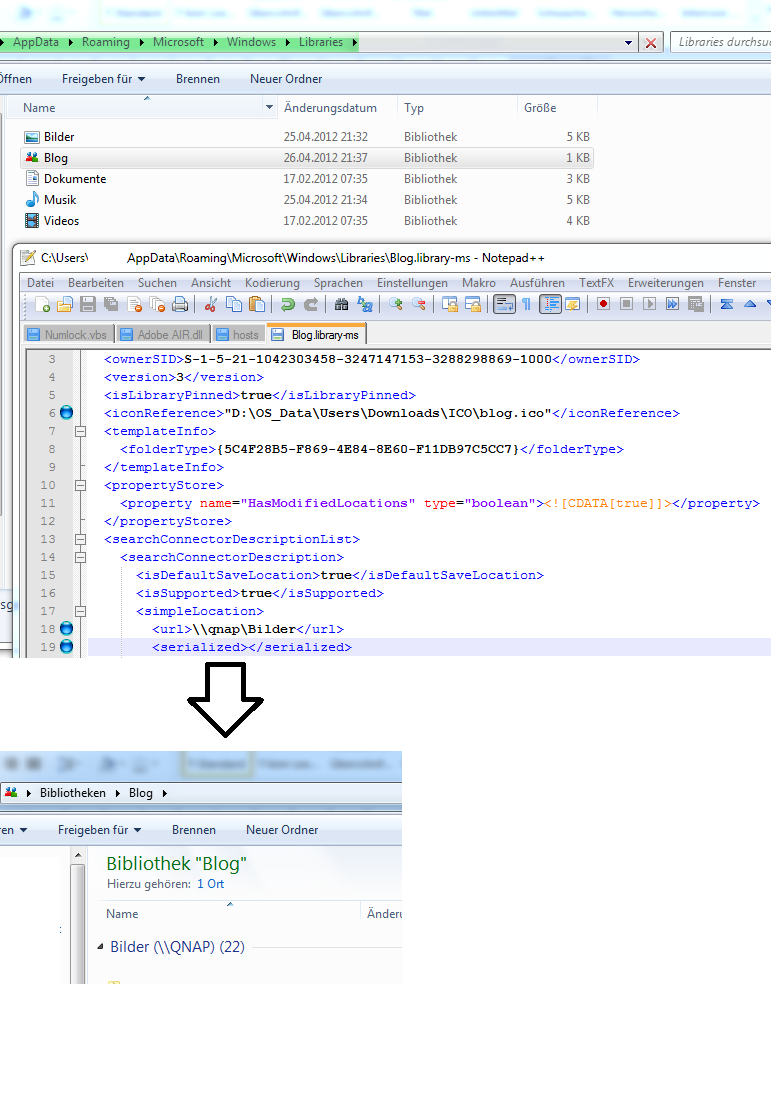
Here you will see your Libraries. Just right-click one and open it up with an editor (like Notepad++)
Now you have to change two sections. Add the Network share to url part:
And simply clean the extremely long string that is inside of the serialized section. It needs to look like
this:
< serialized >< /serialized >
The string inside will be recreated if you open up the Library the first time
Save and close Notepad and browse to your Library stored on a not indexed Network share.
Another Tipp: You can edit the < iconReference > section to place different Icons there
e.g. "D:\ Downloads\ICO\blog.ico"
You wonder how you can add Network shares as a Library in Windows 7?
It is a really easy thing to do!
Browse to the folder:
%appdata%\Microsoft\Windows\Libraries
Here you will see your Libraries. Just right-click one and open it up with an editor (like Notepad++)
Now you have to change two sections. Add the Network share to url part:
< url >\\server\share\< /url >And simply clean the extremely long string that is inside of the serialized section. It needs to look like
this:
< serialized >< /serialized >
The string inside will be recreated if you open up the Library the first time
Save and close Notepad and browse to your Library stored on a not indexed Network share.
Another Tipp: You can edit the < iconReference > section to place different Icons there
e.g. "D:\ Downloads\ICO\blog.ico"
... link (0 Kommentare) ... comment